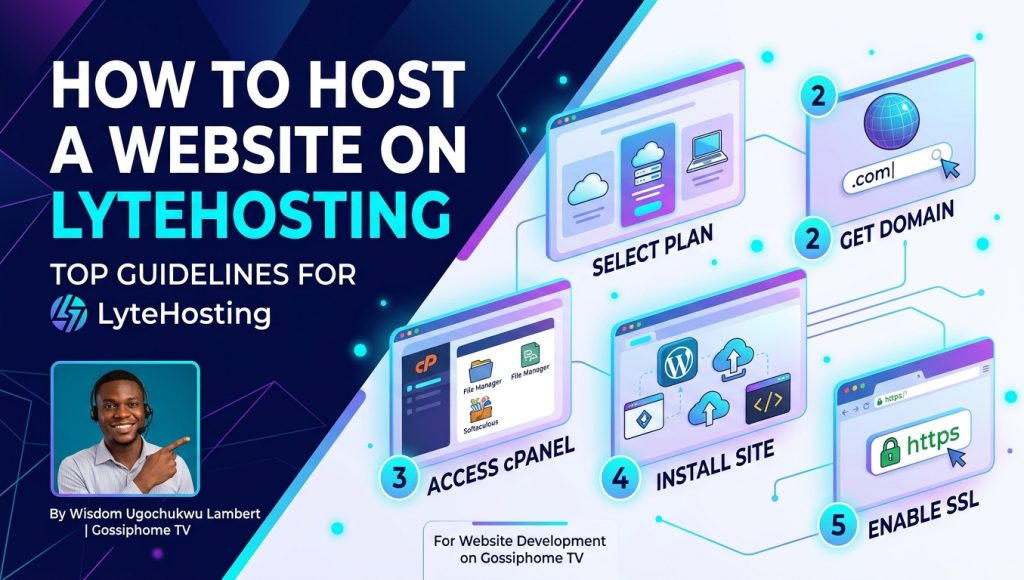

How to Host a Website on LyteHosting: Top Guidelines for Beginners
By Wisdom Ugochukwu Lambert
Taking your first steps into website deployment can feel daunting with all the technical jargon surrounding domain servers, SSL certificates, and control panels. However, launching your online presence doesn’t need to be overwhelming.
Whether you are launching a personal blog, an e-commerce platform, or a corporate portfolio, LyteHosting offers a reliable, fast, and budget-friendly environment tailored for beginners and seasoned developers alike.
This comprehensive guide walks you through every essential step to take your site from local files to live web servers on LyteHosting.
Why Choose LyteHosting for Your Website?
Before diving into the setup, here is why LyteHosting stands out for beginners:
-
Affordability & Performance: High-speed server infrastructure at cost-effective rates.
-
cPanel Access: An intuitive industry-standard management dashboard that makes configuration simple.
-
One-Click Installers: Access to Softaculous auto-installers for quick deployment of platforms like WordPress.
-
Free SSL Certificates: Automatic security activation to keep visitor data protected and boost SEO rankings.
Step 1: Select and Purchase Your Hosting Plan
-
Visit the LyteHosting official website.
-
Navigate to the Web Hosting section and review the available packages (Shared Hosting, Cloud Hosting, or WordPress Hosting).
-
Select a plan based on your current traffic needs:
-
Starter Plans: Ideal for personal blogs, simple business pages, and portfolio sites.
-
Advanced Plans: Suitable for online stores or high-traffic portals.
-
-
Click Order Now to move to the domain selection step.
Step 2: Register or Link Your Custom Domain Name
Your domain is your address on the internet (e.g.,
yourbrand.com). During the setup process, LyteHosting gives you three options:-
Register a New Domain: Enter your desired web name, select your preferred extension (
.com,.ng,.net), and add it to your order. -
Transfer an Existing Domain: Move an existing domain name from another registrar to LyteHosting.
-
Update Nameservers: Keep your domain registered elsewhere while pointing its DNS settings (nameservers) to your new LyteHosting server space.
READ ALSO: Top 10 Studies for Students to Develop Essential Professional Skills
Step 3: Access Your Control Panel (cPanel)

Once your account is active, access your dashboard using one of two methods:
Method A: Via Customer Portal
-
Log in to your LyteHosting Customer Portal.
-
Navigate to Services / Active Hosting Plans.
-
Click Log in to cPanel for instant, passwordless access.
Method B: Direct URL Login
-
Open your welcome email from LyteHosting containing your cPanel credentials.
-
Go to
[yourdomain.com/cpanel](https://yourdomain.com/cpanel)(or the IP link provided). -
Enter your unique username and password to log in.
Step 4: Choose Your Site Building Method
Depending on your website build, choose the deployment method below:
Option A: Install WordPress via Softaculous (Recommended for Beginners)
-
Inside cPanel, scroll down to the Software section and click Softaculous App Installer.
-
Select WordPress and click Install Now.
-
Fill in the installation settings:
-
Choose Protocol: Select
https://. -
Domain: Choose your domain from the drop-down list.
-
Site Settings: Name your site and write a brief description.
-
Admin Credentials: Create a strong Admin Username and Password.
-
-
Scroll down and hit Install. Once complete, log in at
[yourdomain.com/wp-admin](https://yourdomain.com/wp-admin)to start designing!
Option B: Upload Custom HTML/CSS/PHP Files
-
In cPanel, navigate to the Files section and select File Manager.
-
Open the
public_htmldirectory (this is the root directory for your live site). -
Click Upload in the top menu and select your compressed website files (
.zip). -
Once uploaded, right-click the
.zipfile insidepublic_htmland select Extract. -
Ensure your primary homepage file is named
index.htmlorindex.php.
Step 5: Secure Your Website with SSL
Security builds trust with visitors and search engines alike:
-
Locate SSL/TLS or Let’s Encrypt / AutoSSL in your cPanel dashboard.
-
Run an AutoSSL check or select Issue SSL next to your active domain.
-
Verify that your website address loads safely with
https://and displays the padlock icon in the browser address bar.
Step 6: Create Professional Custom Email Addresses
Establish credibility by setting up custom domain-based email addresses (e.g.,
info@yourdomain.com or contact@yourdomain.com):-
Open cPanel and navigate to Email Accounts.
-
Click + Create.
-
Set your custom username prefix and a secure password.
-
Access your inbox anytime via Webmail or configure it on your smartphone/Outlook via SMTP settings provided by LyteHosting.
CLICK HERE GO GET 5% DISCOUNT FROM LIYEHOSTING
Key Maintenance Tips for Beginners
-
Keep Backups Regularly: Utilize cPanel’s Backup Wizard to store periodic copies of your files and databases.
-
Update Software Frequently: If using a CMS like WordPress, keep core files, themes, and plugins updated to safeguard against vulnerabilities.
-
Monitor Disk & Bandwidth Usage: Track your account statistics inside cPanel to upgrade resources before reaching capacity limits.
Final Thoughts from Gossiphome TV
Hosting your website on LyteHosting gives you a solid foundation without technical friction. By following these beginner-friendly steps, your website can be up and running seamlessly in just a few clicks.
Have questions about custom web development or server troubleshooting? Stay connected with Wisdom Ugochukwu Lambert and the Gossiphome TV tech team for more actionable guides, tutorial updates, and digital industry insights.





Pingback: 7 Essential Steps After Hosting Your Site on LyteHosting - Gossiphome TV
Pingback: Elon Musk Flying Car Launch: Tesla Roadster SpaceX Thrusters - Gossiphome TV